 Board Designer
The Stock lane Pro
You click Stock at the top to manage your shelf for all your boards at once: what you have, what to order, what is coming.
On hand
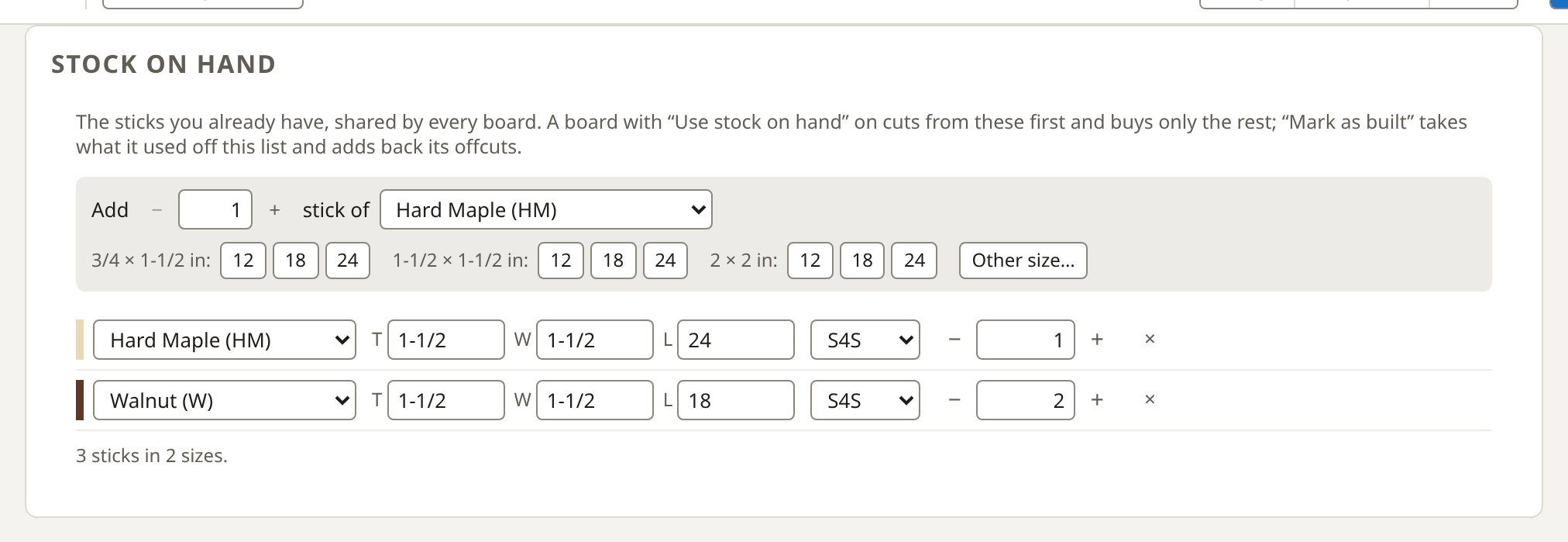
Your stock list (see Stock on hand), and What you can build: each board in progress, and whether your stock covers it, how many sticks it is short of, or that it cannot be built as drawn.
Order
You tick the boards you will build, in the order you will build them, with how many of each. The order is worked out one board at a time, each using what the one before left, and checked with all of it on the shelf at once.
- Missing stock only orders what your stock and the sticks already on order do not cover; Order all stock orders everything.
- One spare of each adds a spare to every line.
- The lines are grouped by supplier, with their prices. You copy them as text for an email, print them, or save a PDF.
- Place order saves it as ordered: its sticks count as on their way. Save as pending keeps the boards and options to place later, the sticks worked out again then.
On order
Your orders in three groups:
- Pending: the sticks it would order today; you place it or remove it.
- Placed: what has arrived and what is still to come. You receive a line in full or in part ("5 of 8"), or mark the rest as not coming. Received sticks go on your stock list.
- Received: folded away, kept for the number of days you set in the Business settings.
With a library folder, two computers share the orders. If both receive the same line before either sees the other's, the app asks whether it was a second delivery: Receive again keeps both, Skip, same delivery takes this computer's back off the stock list.
Reports
The stock on hand report (what you have, assigned and available, its board feet and value) and the order report, to print, save as a PDF or copy as text.